Introduction
A Shopify product listing should make it easy for customers to see what they’re buying. It should also make it clear to you, the store owner, which product to process when an order comes in. Sizes, frames, and other options are worth getting right before you make the listing available.
To learn how to list products on Shopify with Lumaprints, Webinar 67 walks through an example using a fine art paper print with framing options. The steps are intended for integrated stores, but they can also help if you use Shopify and fulfill orders with Lumaprints without an integration. Automated processing requires connecting your store to Lumaprints first, which is covered in our learning tutorial series.
Choose a Product Title and Write Your Description
For the title, use something that helps both you and your customers recognize the print. It doesn’t need to match the product name in Lumaprints word for word. We suggest using your design’s title followed by the product type.
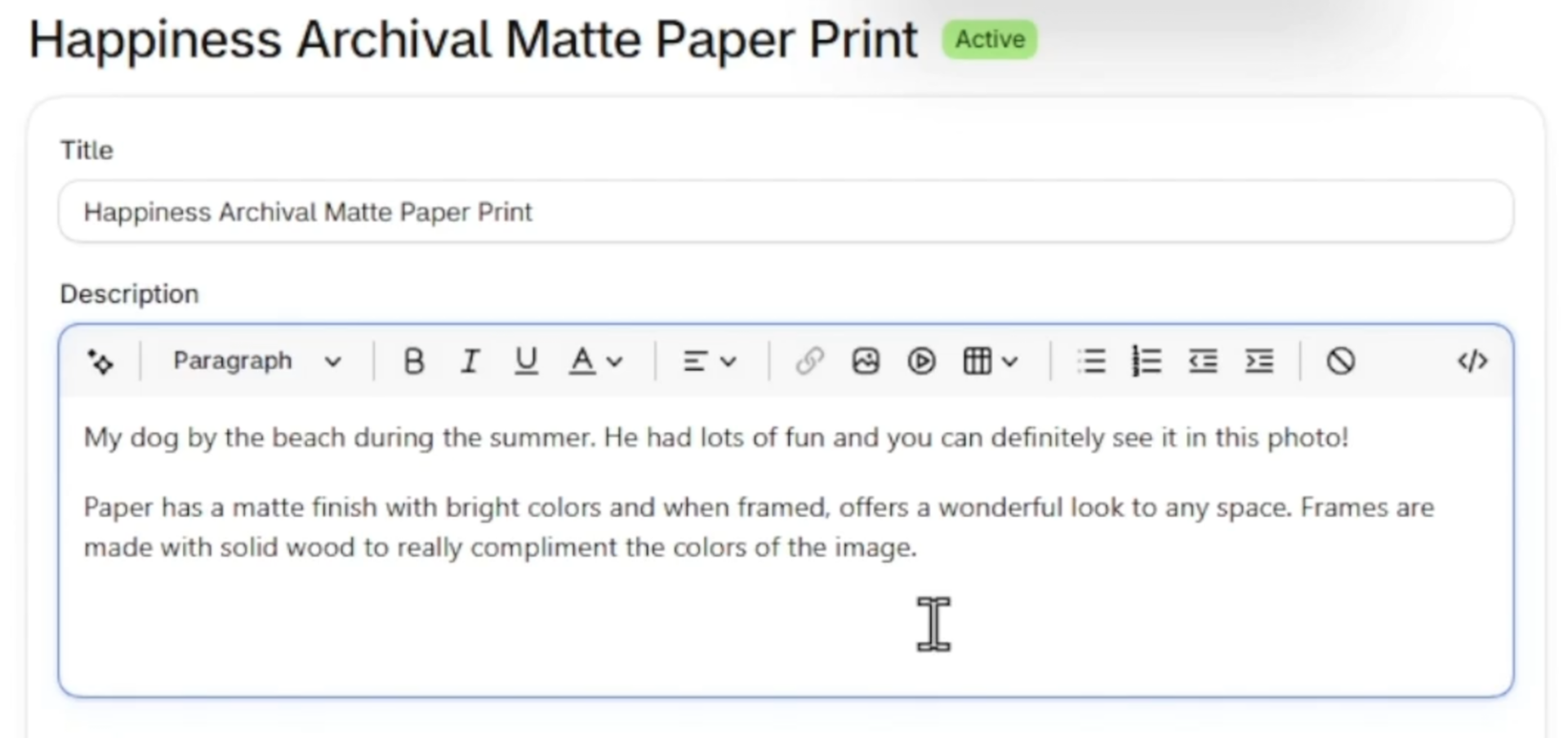
You might name it “Happiness Paper Print” or “Happiness Archival Matte Paper Print.” Either works, as long as the product type is clear. When you process the order in Lumaprints, you will select the paper type and the image file associated with that product.
You have more flexibility with the description. The wording you use there does not affect how Lumaprints interprets the product. Consider a short description of the artwork, followed by useful information about the materials. For material details, take a look at our website and choose what you want to share with customers.
Set Up Your Product Variants and Prices
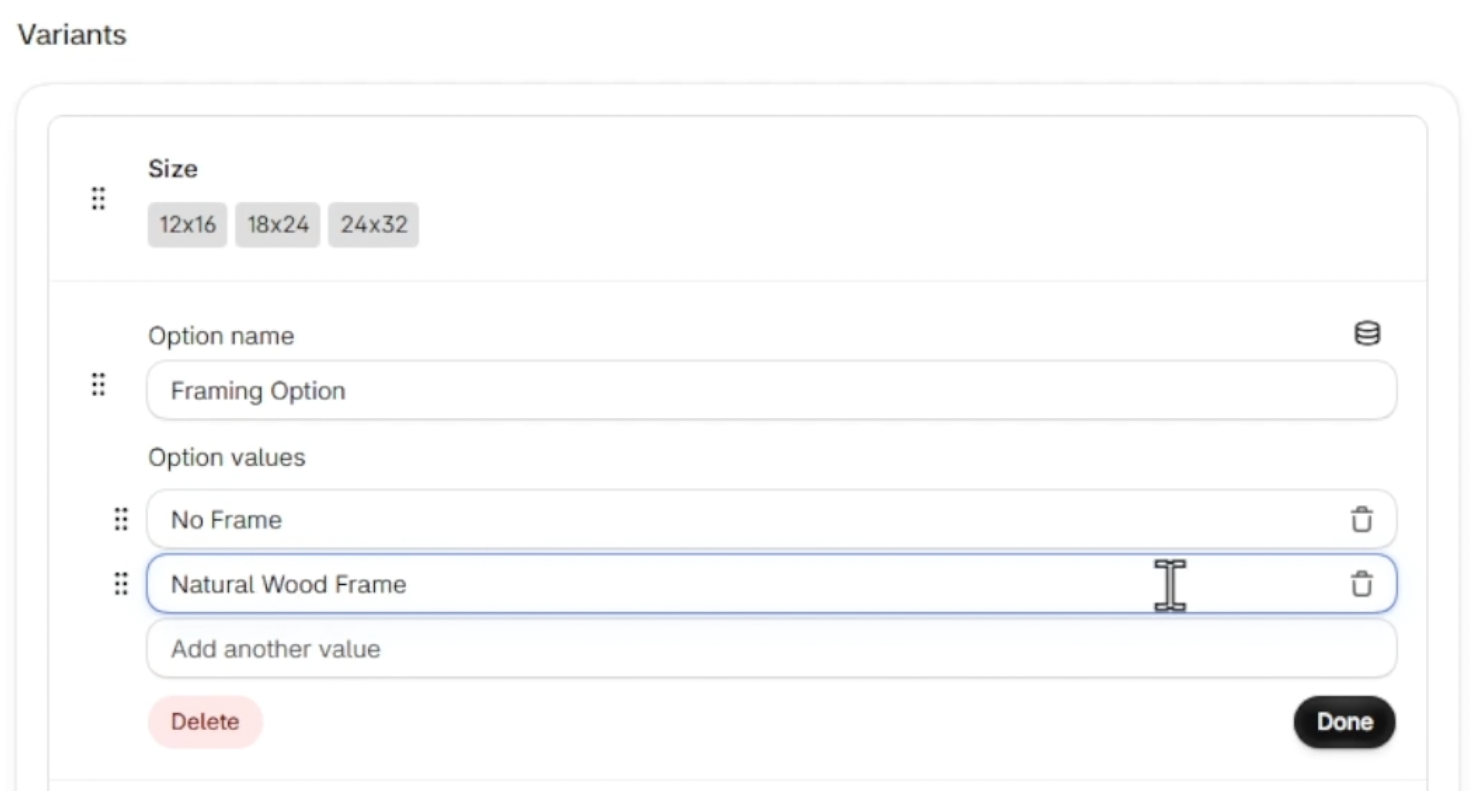
Pay close attention to your variants, especially if you’re offering several print sizes or framing options. Name each option clearly so you’ll recognize exactly what to fulfill when that first order comes in.
- Print sizes: Show the dimensions for every print size you plan to offer.
- Frame options: State which frame you’re offering, such as a natural wood frame. You don’t need to list the frame depth for customers, but you should know which depth and dimensions you’ll select for fulfillment.
- Mat options: For mats, include the color and width in the option name. For example, “With 3-inch White Mat” is more useful than simply “With Mat.”
For example, three sizes and a natural wood framing option result in six variants. Every option you add means more variants to manage. Make sure you can tell them apart when it’s time to process an order.
Keep your prices consistent for prints of similar sizes and product types. We recommend putting the prices in a spreadsheet first, then copying them into Shopify. For more guidance, Lumaprints also has a pricing tutorial in the learning series.
Prepare Shipping and Fulfillment Details
Once the product options and prices are in place, check the settings that affect how orders are handled. The webinar covers shipping, vendor information, and the extras you may want to include with each print.
Set Up Shipping Rates and Zones
Lumaprints handles shipping and charges you the shipping cost. You can build that cost into your base product price and offer free shipping, or offer a flat shipping rate while also accounting for shipping costs in your product price. The shipping calculator in your Lumaprints dashboard can help you estimate the amount.
To offer free shipping on your Shopify listings, open Settings in Shopify and go to Shipping and Delivery. Create a shipping profile, give it a name, and add the products you’ll fulfill with Lumaprints. Use the Lumaprints address from our Contact Us page as the fulfillment address. For the shipping zone, select the U.S. Then choose a flat rate and set it to $0.00. (Note: if all your products are being fulfilled by Lumaprints, you can just select the “General profile”).
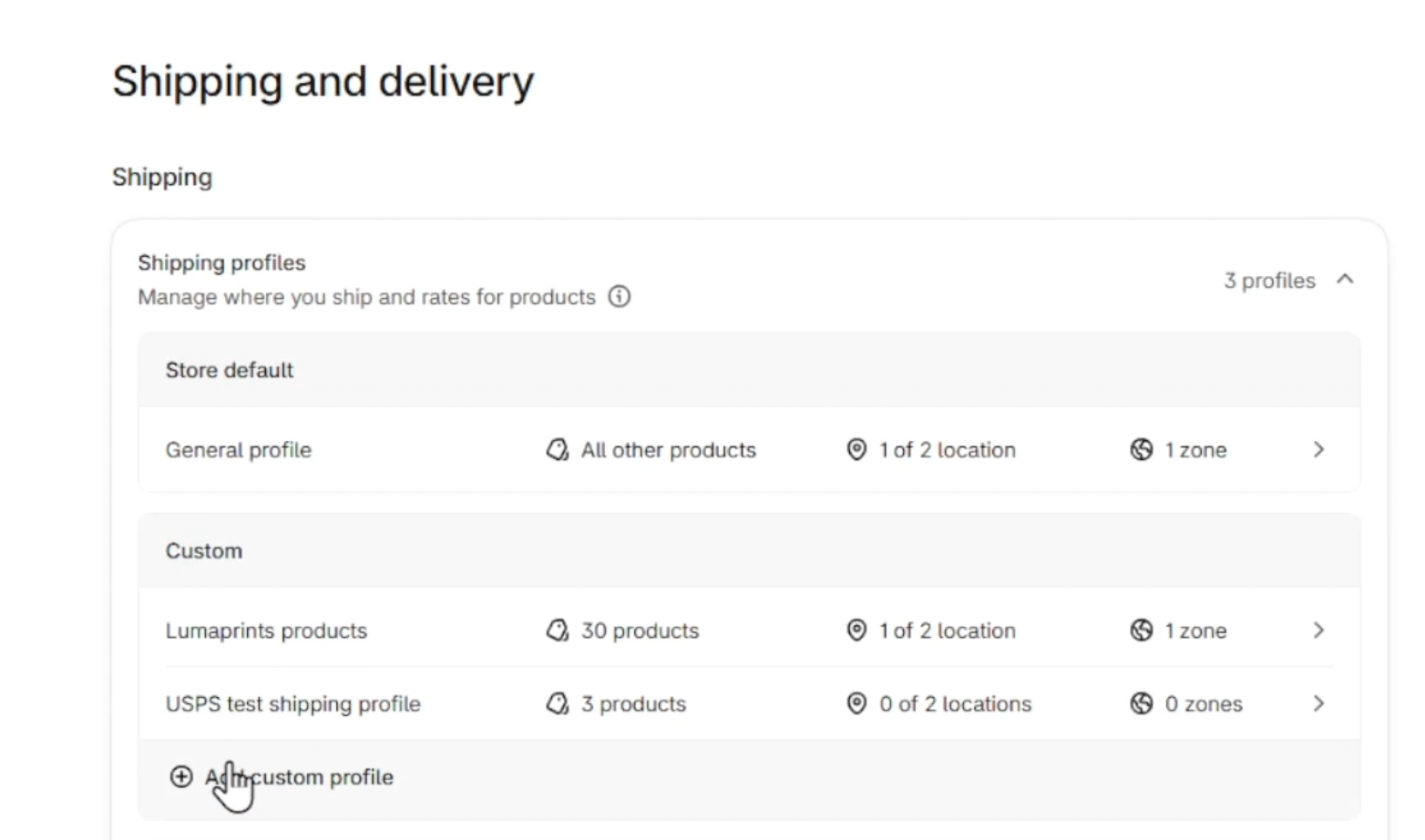
We also suggest showing a transit time of 5 to 8 days to account for the production time of a made-to-order product. Be sure your shipping settings reflect the products you are offering.
Set Lumaprints as Your Vendor
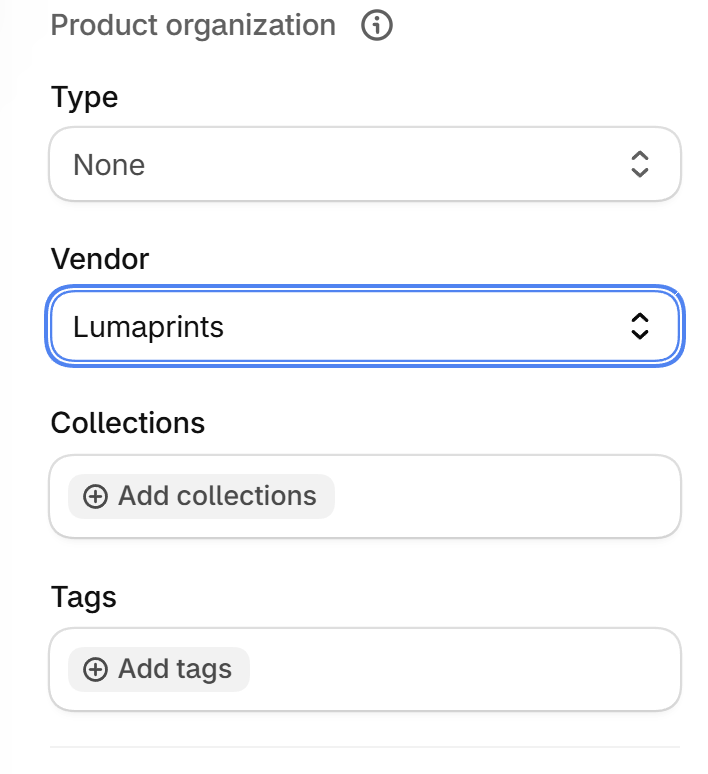
In the Shopify vendor field, type “Lumaprints” with a capital L, no other capital letters, and no spaces. This helps us distinguish Lumaprints vendor products from those listed under other vendors during automated processing.
You also need to open Store Settings in your Lumaprints dashboard and check the box for “Lumaprints as vendor.” (Note: if all your products are being fulfilled by Lumaprints, you can skip this option).
Add Marketing Materials, Bundles, and Mockups
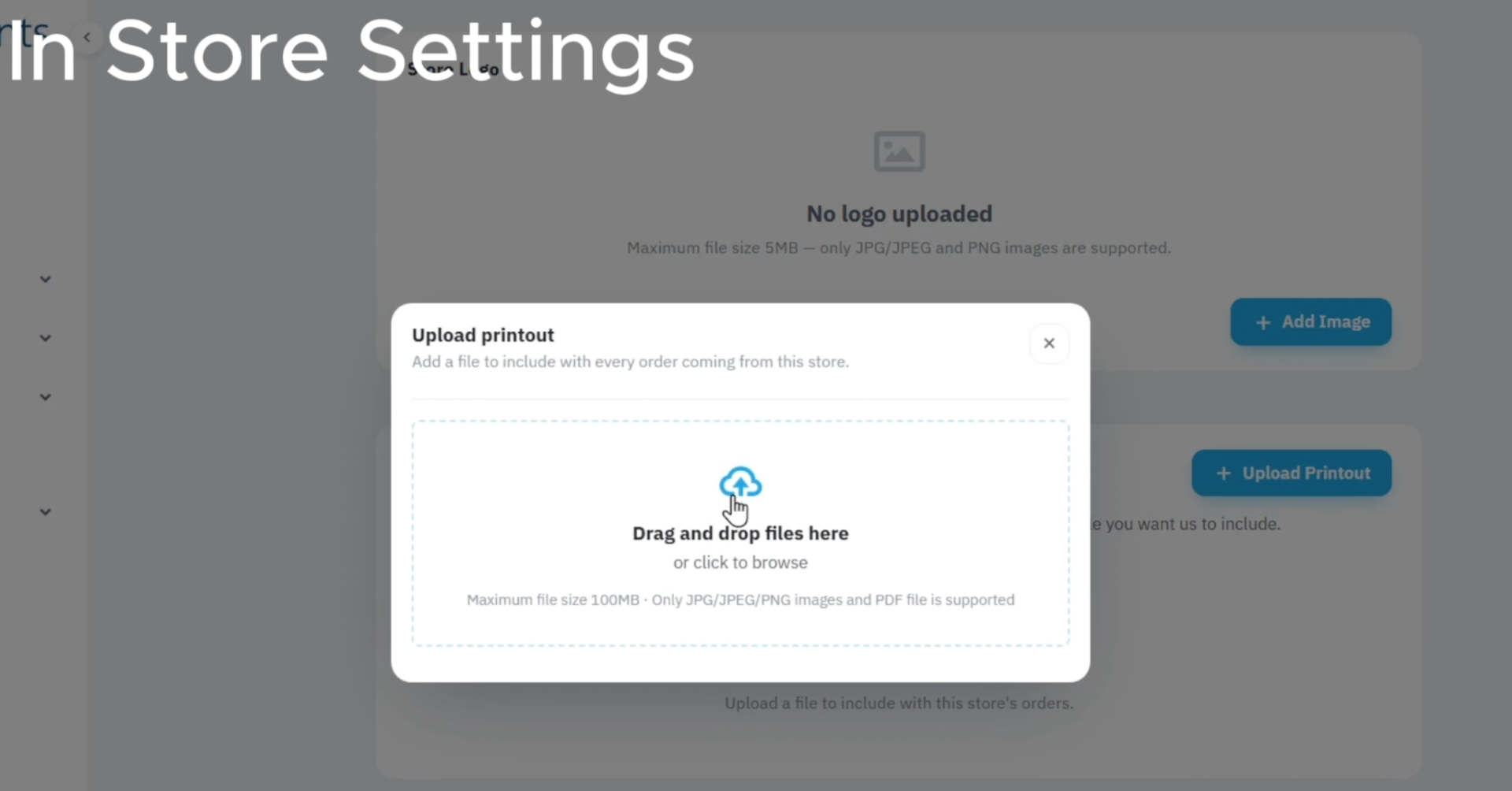
Want to add something extra to your orders? You can include a thank-you note or a QR code for reviews or discounts. We offer a complimentary, one-sided printout on standard printer paper. If you prefer, you can purchase a print on Lumaprints fine art paper for your marketing material.
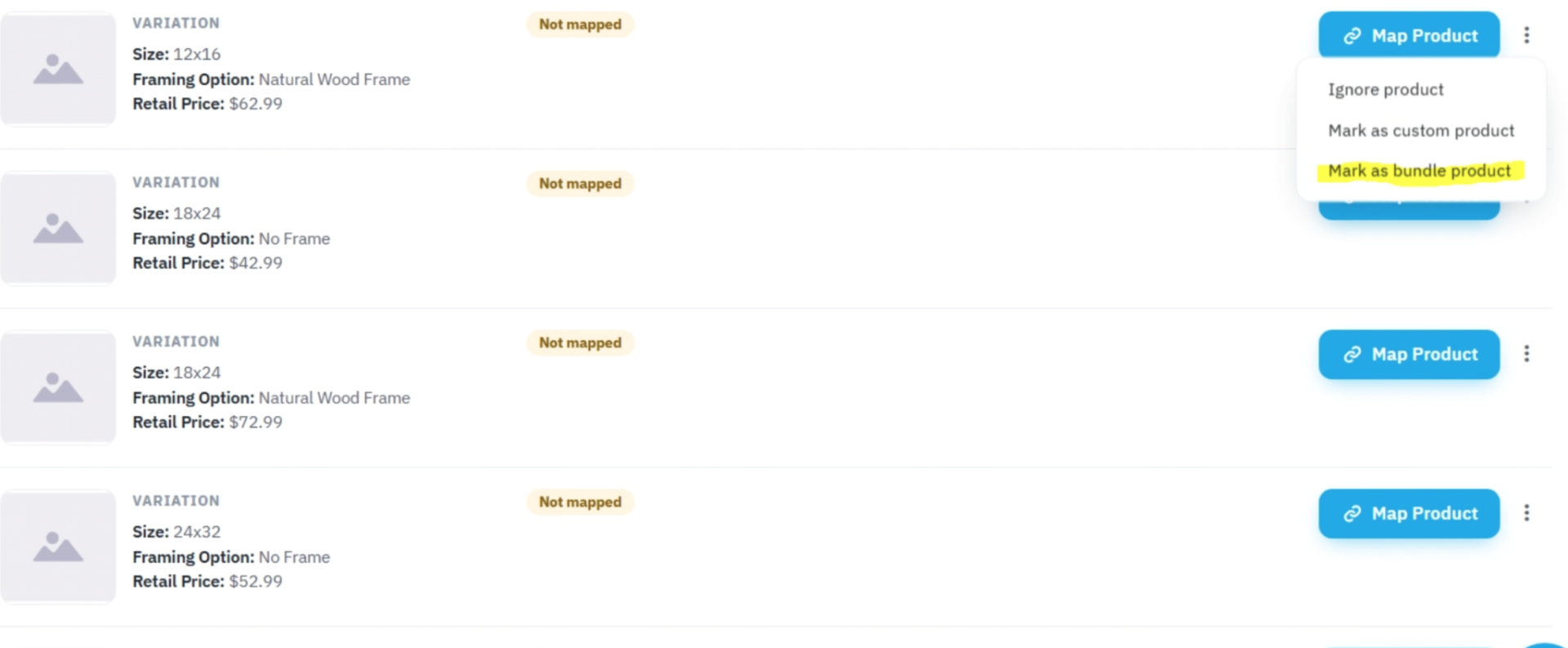
For items that should be included together, use the bundling feature when mapping the product for fulfillment in Lumaprints. In the cart, click the three dots on the product, choose “Mark as bundled product,” then “Add product to bundle” to include the secondary item with future orders. This feature can also be used for diptychs and other multi-panel products.
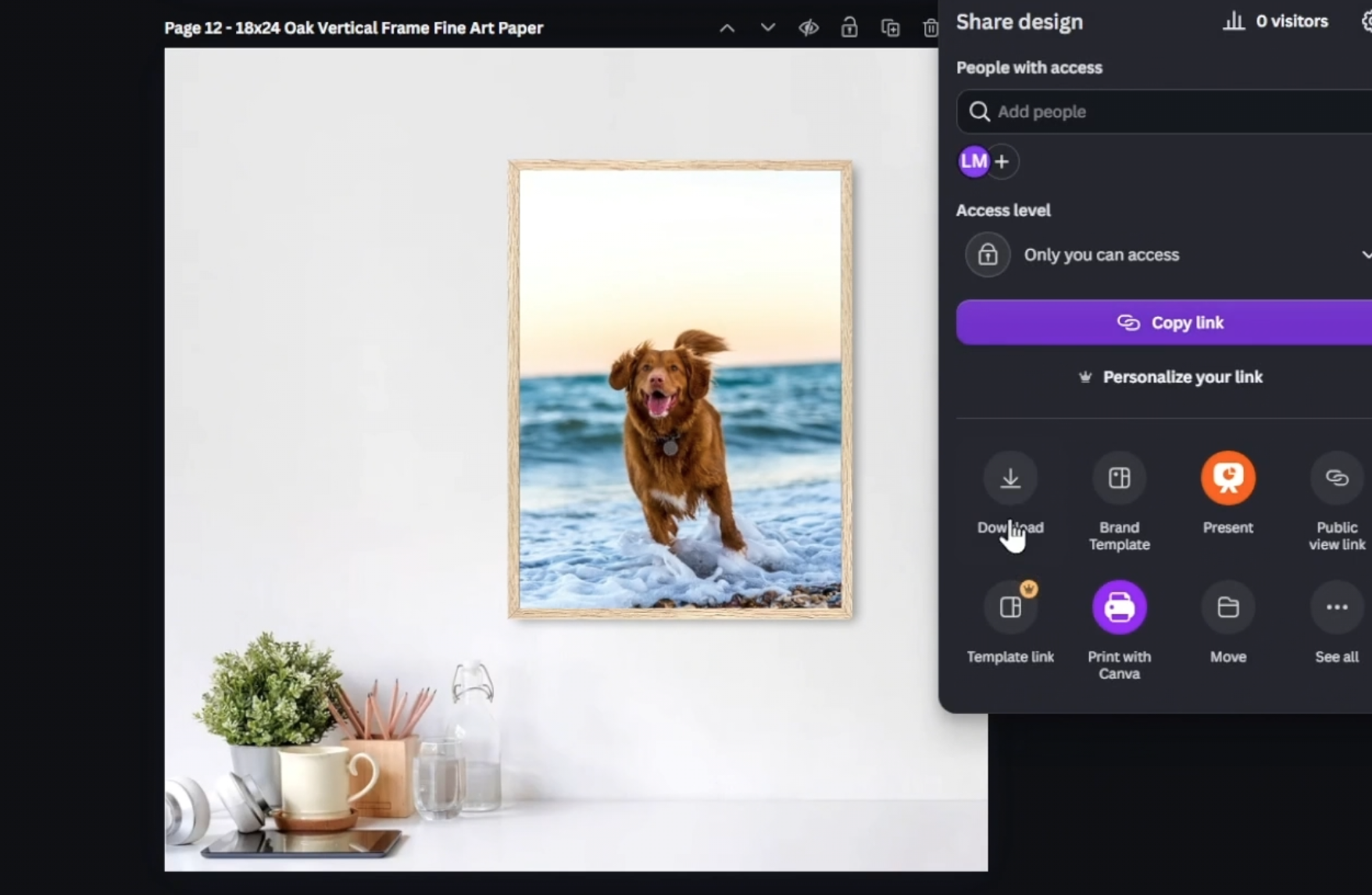
We also provide editable product mockups as PSD files and Canva links. If you are new to making mockups, we suggest starting with Canva. The PSD files are another option if you already use Photoshop or similar editing software. Follow the provided instructions to customize either option.
Get Your Shopify Product Listing Ready with Lumaprints
The goal is a listing that shows your customer what they will receive and makes it clear what you need to process in Lumaprints. Before publishing, review your title, variants, pricing, shipping profile, vendor entry, and product images. If you want automated order processing, start with the Lumaprints integration tutorial in our learning series.
Frequently Asked Questions
- Do I need to integrate Shopify with Lumaprints before creating a product listing? – No. You can use these listing tips even if you fulfill Shopify orders with Lumaprints without an integration. However, an integration is required if you want automated processing.
- How specific should my size and framing options be? – Make the option names specific enough that you know what to fulfill. Include the print size and frame color, and add the mat color and width if you offer mats. You should also know the frame depth and dimensions you intend to use.
- Can I offer free shipping on products fulfilled by Lumaprints? – Yes. You can create a shipping profile in Shopify and set a flat shipping rate of $0.00 for U.S. orders. We will handle the shipping and charge you for the shipping cost, so we recommend including this cost in your base product price.
Conclusion / Key Takeaways
A well-organized Shopify listing is easier for your customers to shop and easier for you to fulfill. You don’t need to copy Lumaprints product names exactly, but your sizes, frames, mats, and other options should clearly match what you plan to order.
For a walkthrough of the setup, watch Webinar 67, “How to Create a Shopify Listing with Lumaprints Products.” You can also explore the Lumaprints learning series for integration and pricing tutorials, or leave a question in the webinar comments.